CSS Table Alignment: Position Tables and Align Cell Content
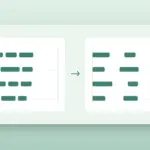
To position a whole CSS table, set the margins of its <table> element. To position text or numbers within <th> and <td> cells, use text-align horizontally and vertical-align vertically.
Identify what you want to align
On an unstyled left-to-right page, a table typically starts at the left, header cells center their text, and data cells usually align text to the start. Browser defaults and theme styles can vary, so declare the alignment you want. See the HTML table rendering defaults.
| What moves | CSS property | Example |
|---|---|---|
| The whole table | margin-inline |
Center the table in its containing area |
| Content across a cell | text-align |
Align quantities to the end of the line |
| Content down a cell | vertical-align |
Place quantities at the bottom of the row |
Center the table or move it to the end
When a table is narrower than its parent, its margins can absorb the extra horizontal space. margin-inline: auto splits that space equally and centers the table. Add the at-end class to make the start margin automatic and the end margin zero.
.stock {
  inline-size: min(36rem, 100%);
  margin-inline: auto;
}
.stock.at-end {
  margin-inline-start: auto;
  margin-inline-end: 0;
}
The inline end is the right in left-to-right text and the left in right-to-left text. For the physical right edge in either direction, set margin-left: auto; margin-right: 0. When the table fills the available width, there is no spare margin to move it. The CSS logical margin properties define the direction-aware behavior.
Align content horizontally within cells
The text-align property positions text or numbers inside a cell. Try start for the item names and end for quantities so the numbers line up for comparison. Use center, left, or right when those positions are what you need.
.stock th, .stock td {
  text-align: start;
  vertical-align: top;
}
.stock td.amount {
  text-align: end;
  vertical-align: bottom;
}
Align content vertically within cells
In a table cell, vertical-align: top, middle, and bottom position content vertically. Use baseline when text baselines should align across a row. See the CSS rules for row height and vertical alignment for how row height and cell positioning interact.
If a row has just enough height for its content, switching between top and bottom can look like it has no effect. The example uses height: 5rem on body rows to show the difference. Rows can grow when their content needs more room.
Run the inventory table example
Save this code as a UTF-8 file named table-alignment.html and open it in a browser. It works without external libraries. The wrapper uses overflow-x: auto so an intrinsically wide table can scroll inside it.
<!doctype html>
<html lang="en">
<head>
  <meta charset="utf-8">
  <meta name="viewport" content="width=device-width, initial-scale=1">
  <title>Stock levels</title>
  <style>
    body { font: 1rem/1.5 system-ui, sans-serif; margin: 1rem; }
    .jb-table-scroll { overflow-x: auto; }
    .stock { border-collapse: collapse; }
    .stock caption { margin-block-end: .5rem; font-weight: bold; }
    .stock th, .stock td {
      border: 1px solid #607d8b;
      padding: .5rem;
    }
    .stock thead { background: #e5f0f7; }
    .stock tbody tr { height: 5rem; }
    .stock {
      inline-size: min(36rem, 100%);
      margin-inline: auto;
    }
    .stock.at-end {
      margin-inline-start: auto;
      margin-inline-end: 0;
    }
    .stock th, .stock td {
      text-align: start;
      vertical-align: top;
    }
    .stock td.amount {
      text-align: end;
      vertical-align: bottom;
    }
  </style>
</head>
<body>
  <div class="jb-table-scroll">
    <table class="jb-table-01 stock">
      <caption>Stock levels</caption>
      <thead>
        <tr><th scope="col">Item</th><th scope="col">Quantity</th></tr>
      </thead>
      <tbody>
        <tr><td><span>Pencils</span></td><td class="amount"><span>12</span></td></tr>
        <tr><td><span>Notebooks</span></td><td class="amount"><span>87</span></td></tr>
      </tbody>
    </table>
  </div>
</body>
</html>
In a wide window, the table is centered, item names are at the upper left of each cell, and quantities are at the lower right. Add at-end to the <table> classes. The table moves right while the cell alignment stays the same. Add dir="rtl" to <html> to see the horizontal positions reverse while vertical placement stays put.
If alignment appears unchanged, inspect the table width and margins first. Then select a th or td and check its computed alignment values in developer tools. For the separate task of stretching text across a cell, see how to justify short table headings.