
CSS Tutorial / Inspect CSS with DevTools: Styles and Computed
Browser developer tools let you inspect which CSS declarations match an element and which values are ultimately used. Styles explains matching and overridden rules, while Computed helps you check the resulting property values; edits in DevTools are normally temporary.
Prepare the example and expected result
Save the entire code below as index.html in UTF-8 format and open it in your browser. In this example, the operating hours paragraph is shown in green and the first general paragraph is shown in gray. The notice included 16px padding and a light background to enable comparison of results by attribute.
<!doctype html>
<html lang="en">
<head>
  <meta charset="utf-8">
  <meta name="viewport" content="width=device-width, initial-scale=1">
  <title>Small Garden</title>
  <style>
body { margin: 24px; font-family: sans-serif; line-height: 1.7; }
    h1 { color: #087f5b; }
    p { color: #666; }
    .notice {
      color: #087f5b;
      padding: 16px;
      border: 1px solid #087f5b;
      background-color: #e9f7ef;
    }
  </style>
</head>
<body>
<h1>Small Garden</h1>
  <p>A place to grow plants and take a break.</p>
  <p class="notice">We open at 9 a.m. every day.</p>
</body>
</html>
Since we placed the CSS in the style element along with the body HTML, the source for the exercise is one file. If you are already practicing with external CSS, you can put the same rule in style.css, but the file name and line number displayed in the developer tools will be different. After confirming that the expected text appears on the screen, open developer tools.
Select the correct element in Elements
- Right-click the sentence “We open at 9 a.m. every day.” on the page and choose Inspect. In Chrome or Edge on Windows, you can also open DevTools with
F12orCtrl+Shift+I. - In the Elements tab, check that the selected line is
<p class="notice">. If another element is selected, press the element selection tool and select the notice again. The location of tools and menu language may vary depending on browser/version. - Open Styles next to or below the selected element. Notice that both the
.noticeandprules are visible. In narrow windows, panels may be placed at the bottom or some tabs may fit into the Overview menu.
What Elements exposes is the Document Object Model (DOM), which is the document structure interpreted by the browser. It doesn't always look the same as the page source. When a browser corrects incorrect HTML or JavaScript replaces an element, the actual selection must be determined against the structure shown in Elements.
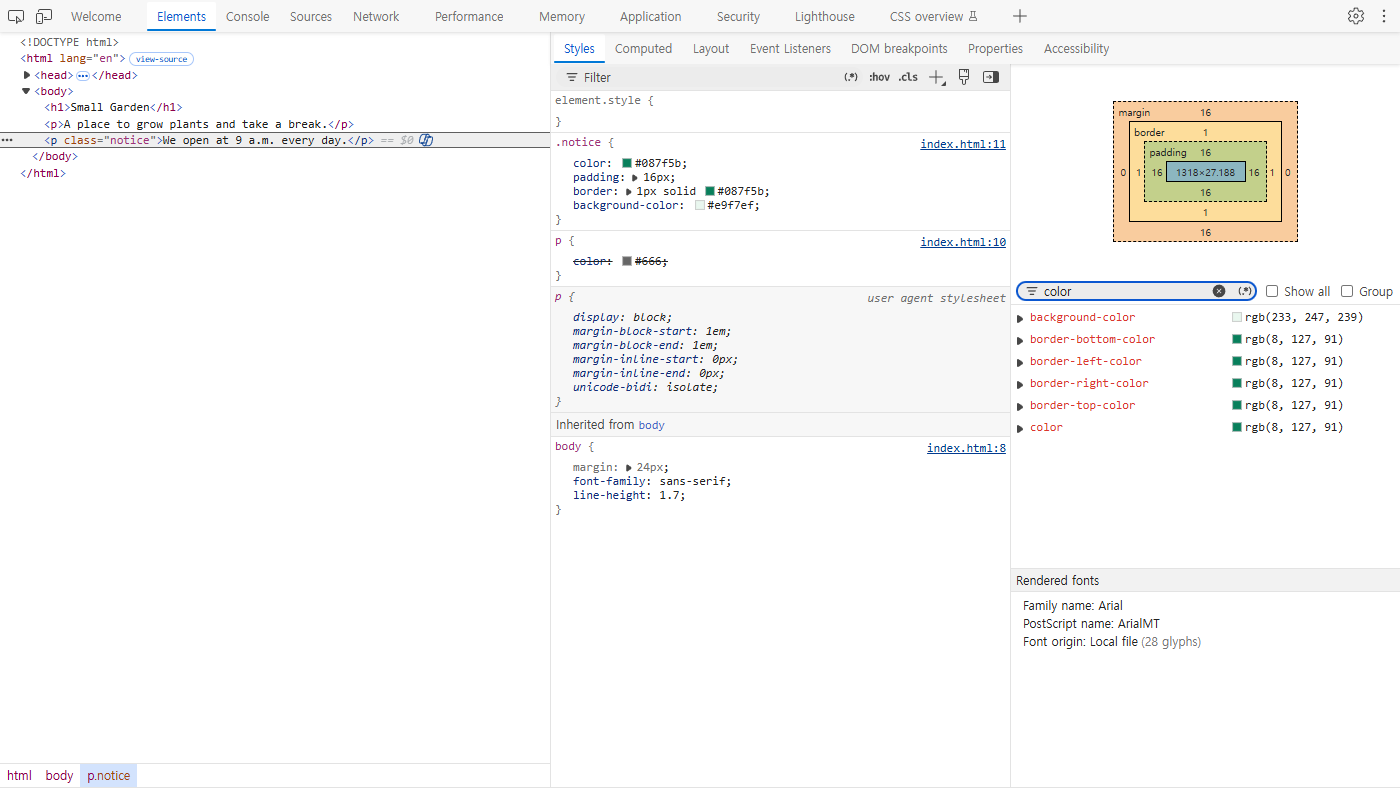
The screenshot shows the English example inspected in Microsoft Edge 155 using its built-in DevTools remote inspector. Computed is open beside Styles and filtered to color. In the usual docked DevTools layout, select the Computed tab to check the same values. Panel placement can differ, while the selected HTML element and matching declarations remain the relevant evidence.
Compare Styles and Computed
Styles displays rules that match the selected element, inline styles written directly on the element, and inheritance-related rules. Both p { color: #666; } and .notice { color: #087f5b; } match the notice, but the final text color is green. This is because the class selector has higher precedence than the element selector in the same origin/importance/layer condition in this example.
If you see a strikethrough in a gray colored declaration, first check the possibility that it is not “the syntax was wrong” but rather “another declaration won”. The meaning of strikethroughs and warning signs may vary depending on the location and situation, so hover your mouse over the declaration and read the explanation. padding: 16px is a separate property from color, so even if there is a color conflict, they can be applied together.
Computed is used to check the final computed style for the selected element. Open the tab and enter color in the filter to find the text color. #087f5b may be displayed as rgb(8, 127, 91), and they are the same color. Expand a property to track related rules and sources. Some properties may be hidden in the default list, so check the display options as well.
| Verification Purpose | panel to check | What to read |
|---|---|---|
| What rules apply? | Elements → Styles | Selectors, declarations, source files and line numbers |
| Why can't I see the colors I used? | Styles | Strikethrough, winning declaration, warning of invalid value |
| What is the final value that is displayed now? | Computed | Calculated values such as color, padding, etc. |
The Chrome DevTools CSS features documentation explains the panels and how to edit declarations. To understand why declarations conflict, compare the conditional examples in the CSS Inheritance, Specificity, and the Cascade.
Toggle declarations and edit values
- In Styles, look for the
.noticedeclaration ofcolor: #087f5b. Unchecking the box next to a declaration will only temporarily exclude this declaration. As a result, confirm that the color of the notice changes to gray for theprule. - Turn the checkbox back on to return it to its original green color. Then click the color value and change it to
#1d4ed8and press Enter. Verify that only the text in the notice changes to blue and the background color remains light green. - Check the text color again in Computed. If it says
rgb(29, 78, 216), it matches the blue color you changed. The background is a separate property calledbackground-color. - This lab did not set up a save connection or Local Overrides, so when you refresh, the color you changed in Developer Tools will disappear and you'll be back to the original green color. After confirming that the original has not been changed, proceed to the next step.
Declarations that have been cleared can be restored by turning the checkbox back on, and incorrectly changed values can be restored by re-entering the existing values. If you want to remove all other changes at once, refresh without turning on the save function, as in this exercise. If you have turned on workspace linking or local override, the way it is saved and maintained may change, so do not assume that it will be restored with a refresh.
Save a confirmed change to the source file
Click a rule's source filename and line number in Styles to locate it. Because this example embeds CSS in HTML, edit the corresponding rule in the original index.html. For an external stylesheet, open the file identified there, such as style.css. Check the path before editing a similarly named copy. For further detail, see Apply CSS with Inline, Internal, and External Styles.
- Open the
index.htmlyou actually had open in a text editor. If you copied the file to multiple folders, make sure the file path matches the browser address. - Change the color value of the original
.noticerule to#1d4ed8and save. - Refresh your browser. Now, if you open it again and the notice appears in blue, it has been reflected in the original.
- To return to the original design after completing the exercise, restore the original color to
#087f5band save/refresh.
Distinguish three common CSS failures
| situation | How to make it with practice | Check and resolve |
|---|---|---|
| Selector does not match target | Convert original .notice to .notcie | The actual class is notice. Match the selector to the actual element name. |
| Another declaration wins | Change the color of p and check the color of the notice | Only the general paragraph changes, and .notice wins for the notice. Confirm final rules and priorities. |
| Property value is invalid | Change the color of .notice to 16px | You cannot enter a length value in color. Edit with color value. |
For each situation, change the original one by one, save/refresh, check, and then revert. In the first situation, .notcie rules that do not match the selected element may not appear in Styles' list of commonly applied rules. In the third situation, the way the warning appears varies depending on where it was created and the browser version. By dividing the cases into cases where there is no rule, there is a rule but it has been overwritten, and the declaration itself is invalid, you can see where to fix it.

CSS Tutorial / CSS Width, Height, min/max Limits, and box-sizing
Compare content-box and border-box sizing, percentage heights, fluid width limits, and the consequences of fixed heights for growing text.

CSS Tutorial / What CSS Does and How It Differs from HTML
Learn the roles of HTML and CSS through a complete page example, and see how styling changes presentation without replacing meaningful HTML.

CSS Tutorial / CSS Form States: Focus, Validation, disabled, and readonly
Compare form states, create accessible labels and error messages, and inspect which enabled, disabled, and read-only fields enter submitted form data.

CSS Tutorial / Inspect CSS with DevTools: Styles and Computed
Use Styles, Computed, and the box model display to diagnose CSS, compare temporary edits, and transfer a confirmed change to the correct source file.

CSS Tutorial / CSS Grid Basics: Tracks, Lines, and Item Placement
Create a two-dimensional grid, distinguish lines, tracks, cells, and areas, and use fr, minmax(), and spans to place items.

CSS Tutorial / Organize CSS with Shared Styles, Nesting, and Layers
Refactor a small stylesheet without changing its layout, compare nesting and cascade layers, and check relative file paths and selector specificity.

CSS Tutorial / Flexbox Alignment, Wrapping, gap, grow, and shrink
Compare Flexbox alignment and wrapping, distribute space with flex values, and prevent long content from blocking item shrinkage.

CSS Tutorial / CSS z-index and Stacking Contexts
Inspect parent and child stacking contexts, compare real overlap examples, and distinguish stacking order from clipping problems.

CSS Tutorial / Fluid CSS Layouts with min, max, and clamp
Build a bounded fluid layout, compare flexible sizes and spacing, and check that longer content fits without introducing horizontal page scrolling.

CSS Tutorial / CSS Keyframe Animations, Fill Modes, and Pausing
Build a complete animation example, compare end states and delays, pause decorative motion, and check a prefers-reduced-motion alternative.