
CSS Tutorial / CSS Paragraph and List Styling
CSS controls paragraph alignment, indentation, line spacing, and margins without changing the text's meaning. For lists, marker style and position affect the appearance of wrapped items, while HTML still supplies the list structure and ordering.
Separate line spacing from paragraph spacing
.article p {

  line-height: 1.65;

  margin-block: 0 1.2em;

}
If you increase CSS Fonts, Font Sizes, and Line Height, the arrangement of lines in the same paragraph becomes wider. Increasing margin-block increases the outer space between the paragraph box and the following content. Using the two interchangeably may look fine in short paragraphs, but may result in excessive line spacing in long paragraphs.
margin-block: 0 1.2em sets the block-start margin to zero and the block-end margin to 1.2em. In this horizontal-writing example those are the top and bottom. Vertical writing changes the physical directions. Here, em uses the paragraph's own font size. See MDN: margin block.
Browsers supply default paragraph and list margins. Override them deliberately to distinguish those defaults from your own spacing. Adjacent vertical block margins can collapse rather than add. This example sets the paragraph's start margin to zero and controls the gap with its end margin. For further detail, see The CSS Box Model: Content, Padding, Border, and Margin.
Compare text alignment and first-line indentation
.article p { text-align: start; }

.article .intro { text-indent: 1.5em; }
text-align determines the alignment of text within a line. start is the beginning of the text flow and is on the left in a basic left-to-right left-to-right document. This is not a property that moves the entire paragraph box to the center of the screen. Long center-aligned descriptions have different starting positions for each line, so choose an easy-to-read alignment for the body first.
text-indent: 1.5em indents the beginning of the first line, not each line. I put class="intro" in the first paragraph of the entire example so you can observe it in action. If you want to indent an entire paragraph, you will need to review other settings such as padding. Change the alignment, indentation, and margins, and compare which parts move.
Position list markers and wrapped text
Use ol for ordered processes and ul for items where order is not important. Changing the number shape to a dot in CSS does not change the original HTML structure. Choose the meaning of the content first and then adjust the display method.
| Property | regulating | What to look for in long entries |
|---|---|---|
| list-style-type | Types of display symbols such as dots and numbers | Can you understand the meaning of order? |
| list-style-position: outside | Display symbol outside content box | Does the second line match the beginning of the first line? |
| list-style-position: inside | Include symbol within first line | Does the second line go all the way to the bottom of the symbol? |
| padding-inline-start | Inner margin at the beginning of the text flow | Is the symbol cut off or not attached to the text? |
With outside, list markers sit outside the content box, so reserve space at the list's inline start. In this left-to-right example, padding-inline-start: 1.6em supplies left padding. With inside, the marker takes space in the first line; subsequent lines can extend beneath its position. Compare realistic wrapped items.
Removing list markers also requires an accessibility check. Safari can omit a list with list-style: none from the accessibility tree when it is outside nav. Consider role="list" when retaining list semantics is necessary. This lesson's full example keeps its markers. See MDN: list style.
Separate item spacing from line spacing
.article li + li { margin-block-start: 0.45em; }
li + li selects the li that comes immediately after another li. Creates no extra space before the first item, only between the second and subsequent items. Parts within an item that span multiple lines are controlled by the line-height inherited from the list. If you only increase the spacing between items because the content is dense, the sentences within the item may still appear narrow.
Run the complete paragraph and list example
Save the code below as UTF-8 in paragraphs.html and open it. Because we've kept the sentences in both lists the same, we can only compare where they appear. First line indentation and ordered lists are also checked in the same file.
<!doctype html>

<html lang="en">

<head>

  <meta charset="utf-8">

  <meta name="viewport" content="width=device-width, initial-scale=1">

  <title>Comparing paragraphs and lists</title>

  <style>

    body { margin: 24px; font-family: sans-serif; color: #333; }

    .article { max-width: 65ch; }

    .article p { line-height: 1.65; margin-block: 0 1.2em; text-align: start; }

    .article .intro { text-indent: 1.5em; }

    .article ul, .article ol { padding-inline-start: 1.6em; margin-block: 0 1.2em; line-height: 1.65; }

    .article li + li { margin-block-start: 0.45em; }

    .outside { list-style-position: outside; }

    .inside { list-style-position: inside; }

    ol { list-style-type: decimal; }

  </style>

</head>

<body>

  <main class="article">

    <h1>Small Garden visitor guide</h1>

    <p class="intro">If this is your first visit, check the signs first. This paragraph has a first-line indent. When the text wraps, the remaining lines return to the normal paragraph edge.</p>

    <p>Use line-height for spacing between lines and margin for spacing between paragraphs. Narrow the window and check readability as the text wraps onto more lines.</p>

    <h2>outside list</h2>

    <ul class="outside">

      <li>Check the soil before watering. Wipe up water spilled outside the pot so that other visitors do not slip.</li>

      <li>Read the labels and signs, then follow the path. Compare how the second line of a wrapped list item aligns with its first line.</li>

    </ul>

    <h2>inside list</h2>

    <ul class="inside">

      <li>Check the soil before watering. Wipe up water spilled outside the pot so that other visitors do not slip.</li>

      <li>Read the labels and signs, then follow the path. Compare how the second line of a wrapped list item aligns with its first line.</li>

    </ul>

    <h2>Preparation in order</h2>

    <ol><li>Read the notice.</li><li>Prepare a watering can.</li><li>Put tools back after use.</li></ol>

  </main>

</body>

</html>
Test each spacing change
- Reduce the window width so that list items span more than one line. For outside, check whether the start of the letter is correct, and for inside, check whether the second line extends to the space where the marker was.
- Replace text-indent in .intro with 0. Check if the starting position of only the first line of the first paragraph changes and revert to 1.5em.
- Change the margin-block end value of the paragraph to 0. Make sure that the space between paragraphs is reduced while maintaining the line spacing within the paragraph. Next, change only the line-height to 1.2 to distinguish the difference and then return it to the original value.
- Compare by changing 0.45em of li + li to 0 and 1em. Make sure that the line spacing inside the item and the space before the first item do not differ.
If a symbol is truncated, check the padding of the list and overflow of outer elements. If only some paragraphs are spaced differently, check the selector and browser default styles. 65ch in the entire example is the maximum length based on the width of the number 0 and is not a fixed value for the number of characters.

CSS Tutorial / The CSS Box Model: Content, Padding, Border, and Margin
Measure the four box areas, compare padding shorthand and vertical margin collapse, and inspect the resulting dimensions in DevTools.

CSS Tutorial / CSS position: relative, absolute, fixed, and sticky
Compare positioning modes in a complete example, identify containing blocks, and troubleshoot sticky limits and overlapping content.

CSS Tutorial / What CSS Does and How It Differs from HTML
Learn the roles of HTML and CSS through a complete page example, and see how styling changes presentation without replacing meaningful HTML.

CSS Tutorial / Inspect CSS with DevTools: Styles and Computed
Use Styles, Computed, and the box model display to diagnose CSS, compare temporary edits, and transfer a confirmed change to the correct source file.

CSS Tutorial / CSS Borders, Rounded Corners, and Shadows
Build cards with borders and shadows, compare circles and ellipses, and inspect how ancestor overflow changes visible shadows.

CSS Tutorial / CSS Background Colors and Images: cover and contain
Create and load a local background image, compare repetition, cover, contain, and position, and diagnose image-path and cropping problems.

CSS Tutorial / Pseudo-Elements: ::before and ::after
Add decorative pseudo-elements, compare them with the original page, and keep essential information in HTML while checking keyboard access.
CSS Tutorial / CSS Paragraph and List Styling
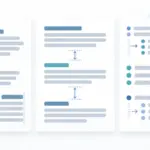
Style paragraphs and ordered or unordered lists, compare inside and outside markers, and check spacing and wrapped text on narrow screens.

CSS Tutorial / CSS Inheritance, Specificity, and the Cascade
Work through inheritance and conflicting rules, compare specificity and source order, and understand the limits of !important in a simplified example.
CSS Tutorial / CSS display: Block, Inline, inline-block, and Hiding
Compare block and inline sizing, replaced elements such as images, and the layout and interaction differences between common hiding techniques.