How to Enable Word Wrap in Visual Studio Code
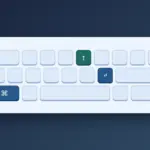
Press Alt+Z on Windows or Linux, or ⌥Z on macOS, to toggle word wrap in Visual Studio Code. To enable it by default, set Editor: Word Wrap to on. Word wrap changes how long lines appear on screen and preserves the file’s line breaks.
Toggle word wrap in the current editor
Open a file with a long line and press the shortcut to switch wrapping in the current editor. If another app intercepts the shortcut, open the Command Palette and run View: Toggle Word Wrap.
Narrow the editor and look for the continuation of the same numbered line. Toggle wrapping again to show it as one line. To add a line break to the file, insert it directly or use a formatter that makes the intended edit.
Microsoft’s VS Code word wrap guide
Set a default in Settings
- Open Settings with Ctrl+, on Windows or Linux, or ⌘+, on macOS.
- Choose User for the active profile or Workspace for the current project.
- Search for
@id:editor.wordWrap. Set Editor: Word Wrap toonand check a file with a long line.
User settings provide defaults for the active profile. A project or language-specific setting can give a particular file a different value.
Choose how long lines wrap
| Value | Where long lines wrap |
|---|---|
off |
Wrapping stays off. Scroll horizontally to read long lines. |
on |
At the editor’s visible width. |
wordWrapColumn |
At the column set in editor.wordWrapColumn. |
bounded |
At the smaller of the editor width and the configured column. |
Choose bounded for a reading-width limit on wide screens that still fits narrow splits. To show a visual guide at a column, use editor.rulers.
Set a column limit in settings.json
Run Preferences: Open User Settings (JSON) in the Command Palette. This example wraps at the editor width when it is narrower than the 88-column limit. Add or update the two keys inside the existing outer braces and save.
{
  "editor.wordWrap": "bounded",
  "editor.wordWrapColumn": 88
}
With the same long line open, make the editor wider and narrower and compare where it wraps. The column is a display guide. Tabs, character widths, and word boundaries can change how many characters fit on each visual line.
When word wrap behaves differently
If only a project or a Markdown file behaves differently, check the Workspace tab and language-specific settings such as [markdown]. An editor where you used the toggle can also show a different state from the default.
In the Settings tab where you made the change, open the gear menu and choose Reset Setting. If you edited JSON, remove the keys you added or restore their previous values.