How to change the display language in Visual Studio Code
In Visual Studio Code, run Configure Display Language from the Command Palette, choose a language, and restart. English is built in. Other display languages can require a Language Pack extension.
Change the display language in the Command Palette
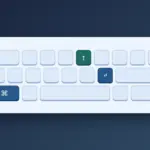
- Open the Command Palette with Ctrl+Shift+P on Windows or Linux, or Command+Shift+P on macOS.
- Search for
displayand select Configure Display Language. If the command is localized, search for the words for display language in the current interface. - Choose the desired language. For example, choose English (
en) or French (fr). VS Code installs the matching Language Pack when required. - Save your work and accept the restart prompt. After the window reopens, confirm the menu or Extensions view uses the selected language.
Microsoft’s guide to changing the VS Code display language
Confirm the change or switch back to English
To switch back, run the same command, select English, and restart. Other language packs can stay installed.
This setting changes the editor interface. Programming language modes and operating system settings are managed separately. An extension can still display its own untranslated strings.
Find a missing language pack or fix a failed change
If the language is missing, search the Extensions view for its name and category:"Language Packs". Check the publisher and supported language before installing, then select the language again.
If restarting does not help, first confirm the language pack is installed. For a write error mentioning argv.json, open Preferences: Configure Runtime Arguments, check whether earlier edits were saved and whether the JSON is valid, then try again.
Available locales in the Microsoft documentation
Start one session in English
For an English session in the current folder, quit the editor and run this in your terminal. English needs no extra pack.
code . --locale=enThe flag sets the display language for that session. Quit and relaunch without the flag to use your usual language. If the terminal cannot find code, check your installation’s command-line setup.