
CSS / Reference / opacity: Group Transparency, Background Alpha, and Interaction
opacity controls the opacity of an element composited together with its descendants. Use a background color’s alpha instead when only the background should fade and text should remain opaque.
Syntax and value choices
| Property | Initial value | Inherited | Main application conditions |
|---|---|---|---|
opacity |
1 | No | All elements; visible effects depend on the text, image, or box conditions below |
Initial values are not necessarily the values assigned to HTML elements by the browser’s stylesheet. Inspect the actual result in developer tools’ Computed panel.
.faded { opacity: 0.5; }
.background-only { background-color: rgb(0 108 156 / 50%); }
| Value or category | Behavior and choice |
|---|---|
1 |
Fully opaque. |
0.5 |
Composite the element and its descendants at partial opacity. |
0 |
Invisible painting; layout and interaction do not automatically disappear. |
Out-of-range values |
The used opacity is limited to its permitted range. |
For supported values and conditions, see MDN opacity.
Run the example and compare results
Save this complete code as css-reference-10646-example.html in UTF-8 and open it in a browser. Keep its demonstration styles in that file rather than pasting them into a site-wide stylesheet.
<!doctype html>
<html lang="en">
<head>
<meta charset="utf-8">
<meta name="viewport" content="width=device-width, initial-scale=1">
<title>opacity comparison example</title>
<style>
body { margin: 0; color: #20242b; background: #fff; font: 16px/1.7 "Malgun Gothic", sans-serif; }
#demo { padding: 24px; max-width: 820px; margin: auto; }
h1 { font-size: 22px; margin: 0 0 20px; }
.samples { display: flex; flex-wrap: wrap; gap: 24px; }
.label { margin: 0 0 8px; font-weight: 700; }
.samples { background: #ffd166; padding: 16px; }
.target, .reference { width: 220px; padding: 20px; background: #006c9c; color: white; }
.target { opacity: 0.5; }
.reference { background: rgb(0 108 156 / 50%); }
</style>
</head>
<body>
<main id="demo">
<h1>opacity comparison</h1>
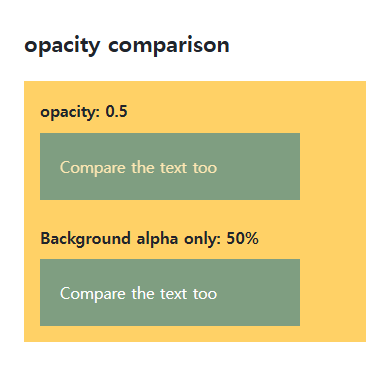
<section class="samples"><div class="a"><p class="label">opacity: 0.5</p><div class="target">Compare the text too</div></div><div class="b"><p class="label">Background alpha only: 50%</p><div class="reference">Compare the text too</div></div></section>
</main>
</body>
</html>
The first box also fades its white text. The second blends only its background with the color behind it; a child opacity of 1 cannot undo a parent’s group opacity.
Transparent is not the same as removed
An opacity-zero element can still occupy space, receive clicks, and appear in keyboard navigation. Choose hidden, display, visibility, or another appropriate state mechanism according to the actual requirement.
Stacking and readable states
Opacity below 1 creates a stacking context, changing how descendant z-index values compete with surrounding elements. Fading also affects text contrast. Do not use faintness as the only indication of a state.
Keyboard interaction remains when transparent
Save this complete document as css-reference-10646-practice.html in UTF-8 and open it in a browser. Test it as a separate file rather than nesting it inside another example.
<!doctype html>
<html lang="en">
<head>
  <meta charset="utf-8">
  <meta name="viewport" content="width=device-width, initial-scale=1">
  <title>Keyboard interaction remains when transparent</title>
  <style>
    body { margin: 16px; color: #20242b; font: 16px/1.7 sans-serif; }
    main { max-width: 52rem; margin: auto; }
    h1 { font-size: 1.35rem; }
    .samples { display: flex; flex-wrap: wrap; gap: 24px; }
    .samples > * { max-width: 100%; min-width: 0; }
    :focus-visible { outline: 3px solid #005fcc; outline-offset: 3px; }
#invisible { opacity:0; } button {margin:8px;padding:10px;} #invisible:focus-visible { opacity:1; }
  </style>
</head>
<body>
<main>
  <h1>Keyboard interaction remains when transparent</h1>
<p>The transparent button is on the left. Tab focus makes it visible for inspection.</p><button id="invisible" type="button">Transparent button</button><button id="visible" type="button">Visible button</button><p id="count" aria-live="polite">0</p><script>let count=0;for(const button of document.querySelectorAll("button")){button.addEventListener("click",()=>{document.getElementById("count").textContent=String(++count);});}</script>
</main>
</body>
</html>
Tab to the transparent button and press Space or Enter to increment the counter. Opacity:0 alone retains layout and interaction. The focus-visible override exists for this demonstration. Temporarily add the hidden attribute in Elements, compare removal of space and interaction, then remove it to restore the sample.
For stacking contexts created by opacity below 1 and their relationship to z-index, see CSS z-index and Stacking Contexts.
Opacity can also reduce text contrast after compositing. Choose hidden, display:none, or visibility:hidden according to required layout, accessibility, and interaction. Visibility:hidden retains space while normally removing the element from focus navigation.
For coordinated font sizing, line heights, and typeface choices, see CSS Fonts, Font Sizes, and Line Height. Related properties to compare alongside these conditions are background-color.
When the result is missing or unexpected
- Compare background alpha if the intended effect should leave text opaque.
- Inspect interaction and focus separately when a transparent button still responds.
CSS / Reference / empty-cells: Show or Hide Empty Table Cells
Control empty-cell borders and backgrounds in a separated table while preserving its structure. Compare show, hide, whitespace, and the collapsed-border exception.

CSS / Reference / quotes: Choose Nested Quotation Marks
Choose generated quotation pairs for nested text and distinguish them from literal punctuation. Compare automatic marks, none, and quotation-depth operations.

CSS / Reference / background-size: Cover, Contain, and Background Sizing
Compare background cover and contain using a known image ratio. Account for positioning areas, percentages, cropping, repeated tiles, and the element’s own size.
CSS / Reference / text-decoration: Decoration Propagation, Underlines, and Link Meaning
Style text decoration and compare parent-originated lines with child rules. Keep links identifiable and separate meaningful deletions from visual strike-through.
CSS / Reference / background-image: Images, Gradients, Relative Paths, and Layers
Paint gradients or image layers, resolve paths from the correct stylesheet location, and keep meaningful pictures in accessible HTML rather than background decoration.
CSS / Reference / background-color: Background Alpha, Inheritance, and Contrast
Set a background or a partly transparent color without fading the text. Distinguish transparency from inheritance and provide readable image fallbacks.
CSS / Reference / background-attachment: Viewport, Box, and Internal Scroll Attachment
Compare local and scroll backgrounds inside a scrolling box and distinguish them from viewport-fixed backgrounds. Test target-browser behavior and a usable fallback.
CSS / Reference / font-style: Italic, Oblique, and Available Font Faces
Request italic or oblique forms while accounting for real faces and synthesis. Separate visual styling from emphasis semantics and inspect font-loading failures.
CSS / Reference / font-family: Font Lists, Glyph Fallback, and Loading
Build a font stack with appropriate generic fallbacks and inspect the fonts actually used. Distinguish naming a family from loading files and covering characters.
CSS / Reference / background-clip: Background Painting Areas and Text Clipping
Choose border, padding, or content painting areas independently of image positioning. Compare visible boundaries and plan readable fallbacks for text-clipped backgrounds.