
CSS / Reference / empty-cells: Show or Hide Empty Table Cells
empty-cells controls whether an empty table cell paints its border and background in the separated-border model. hide keeps the cell and its space; it does not apply to a table using border-collapse: collapse.
Syntax and value choices
| Property | Initial value | Inherited | Main application conditions |
|---|---|---|---|
empty-cells |
show | Yes | Table cells in the separated-border model |
Initial values are not necessarily the values assigned to HTML elements by the browser’s stylesheet. Inspect the actual result in developer tools’ Computed panel.
table { border-collapse: separate; empty-cells: hide; }
| Value or category | Behavior and choice |
|---|---|
show |
Paint the empty cell’s background and border. |
hide |
Suppress that painting while preserving the cell’s space. |
separate |
The border model in which this property takes effect. |
collapse |
The property does not control empty-cell painting in this model. |
For supported values and conditions, see MDN empty-cells.
Run the example and compare results
Save this complete code as css-reference-10370-example.html in UTF-8 and open it in a browser. Keep its demonstration styles in that file rather than pasting them into a site-wide stylesheet.
<!doctype html>
<html lang="en">
<head>
<meta charset="utf-8">
<meta name="viewport" content="width=device-width, initial-scale=1">
<title>empty-cells comparison example</title>
<style>
body { margin: 0; color: #20242b; background: #fff; font: 16px/1.7 "Malgun Gothic", sans-serif; }
#demo { padding: 24px; max-width: 820px; margin: auto; }
h1 { font-size: 22px; margin: 0 0 20px; }
.samples { display: flex; flex-wrap: wrap; gap: 24px; }
.label { margin: 0 0 8px; font-weight: 700; }
table { border-collapse: separate; border-spacing: 8px; }
td { padding: 12px; border: 2px solid #006c9c; background: #bfe3ff; }
.target { empty-cells: hide; }
.reference { empty-cells: show; }
</style>
</head>
<body>
<main id="demo">
<h1>empty-cells comparison</h1>
<section class="samples"><div><p class="label">hide</p><table class="target"><tbody><tr><td>Content</td><td></td></tr><tr><td>Second</td><td>Value</td></tr></tbody></table></div><div><p class="label">show</p><table class="reference"><tbody><tr><td>Content</td><td></td></tr><tr><td>Second</td><td>Value</td></tr></tbody></table></div></section>
</main>
</body>
</html>
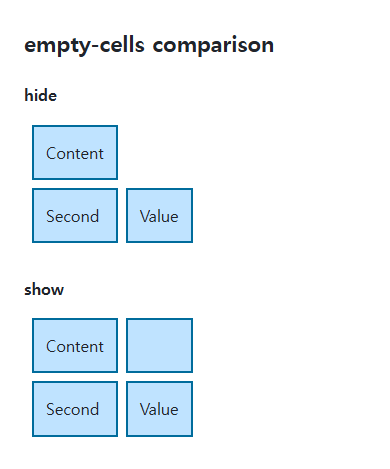
The first table hides the second empty cell’s background and border. Both tables retain the same rows, columns, and cell space.
What counts as empty?
Visible text, images, and generated content can change whether a cell is considered empty. A nonbreaking space such as is different from genuinely empty content. Do not insert decorative spaces simply to manufacture a table layout.
Painting is different from deleting data
This property does not remove a row or filter a data value. If readers need to understand missing information, an explicit “Not applicable” value may be clearer than an unexplained blank. Cell spacing and the table’s outer border use separate properties.
Change one setting at a time
Use the complete example file above. Change only the specified selector or value rather than several comparison conditions at once.
- Put ordinary whitespace, a nonbreaking space ( ), and visible text into one empty cell in turn, comparing its paint.
- Switch the same table to collapse, compare hide/show, then restore separate and the empty cell. Distinguish cell space from its painting.
For table-wide sizing and cell layout, see CSS Tables: Borders, Sizing, and table-layout. Related properties to compare alongside these conditions are border-spacing.
When the result is missing or unexpected
- Check that Computed shows border-collapse: separate.
- Inspect whitespace, generated content, and children in a cell that remains visible.

CSS / Reference / letter-spacing, word-spacing: Compare Character and Word Spacing
Adjust character and word gaps independently using the same text and a normal baseline. Account for inheritance, language, wrapping, and excessive negative spacing.
CSS / Reference / empty-cells: Show or Hide Empty Table Cells
Control empty-cell borders and backgrounds in a separated table while preserving its structure. Compare show, hide, whitespace, and the collapsed-border exception.
CSS / Reference / text-indent: First-Line Indents and Hanging Paragraphs
Create first-line and hanging indents, distinguish them from paragraph padding, and check inheritance, writing direction, and narrow-screen clipping.
CSS / Reference / font-variant: Small Capitals and Font Features
Use small capitals without changing the source string and choose specific variant longhands. Compare real font support with synthesized presentation.

CSS / Reference / calc(): Calculate CSS Values and Understand Their Types
Combine percentages and lengths with calc(), inspect the actual parent width, and distinguish invalid expressions from newer typed arithmetic and special numeric results.