
HTML Tutorial / Accessibility Basics: Headings, Links, Images, and Keyboard
Accessible HTML starts with choosing elements for their meaning. Use headings in a logical order, write links that reveal their destination, give images appropriate alternatives, and make sure people can complete interactions with a keyboard.
Use headings to describe hierarchy
A heading is not merely large text. It marks a level in the document: a page topic may use h1, major sections h2, and their subsections h3. Do not jump to h4 because you like its default size; adjust appearance with CSS. Someone reading only the headings should be able to understand the page's outline.
For example, “Delivery information” can be a main section, with “Delivery areas” and “Delivery times” as subsections. Avoid empty headings or headings that do not match the text below. The heading hierarchy helps people scan visually and navigate with assistive technology.
Make links and images understandable
A list of links all named “here” gives little clue about their destinations. Write the purpose in the link text, as in <a href="guide.html">Read the user guide</a>. If the link downloads a file, make its type clear in the surrounding context.
An informative image's alt text should convey the information it contributes here. A purely decorative image that repeats nearby text may use alt="". An image used as a link must also convey the link's purpose, such as “Open the user guide.” Avoid listing every visible color or shape when the function is what matters. The W3C WAI image decision tree helps decide which alternative is appropriate.
Try the page without a mouse
- Use
Tabto move through links, form fields, and buttons. - Check that the focused element is visibly identifiable.
- Activate controls using
EnterorSpaceas appropriate. - If a form reports an error, read it, return to the field, correct the value, and submit again.
A div with only a click handler does not automatically gain a button's meaning or keyboard behavior. Use a for navigation and button for actions. If a menu or disclosure opens and closes, check where keyboard focus moves afterward. Focus should not disappear into hidden content, and the navigation order should roughly match the reading order.
Typically, a focused link opens with Enter, while a button activates with Enter or Space. Choosing an element that matches navigation or action gives keyboard users the behavior they expect, rather than forcing a link to imitate a button or vice versa.
Understand what testing can and cannot prove
An automated checker can find some markup errors, but it cannot always judge whether a link is understandable or an image description is useful in context. Combine tool results with keyboard testing, zooming, and, when appropriate, a screen reader. Start with the site's important user journeys rather than treating a zero-error report as a guarantee. The MDN guide to HTML accessibility covers more native HTML patterns.
HTML Tutorial / Form Validation with required, Length, and Range Limits
Apply built-in required, length, and numeric constraints, test error states, and understand why server-side validation remains necessary.
HTML Tutorial / Table Basics: table, tr, th, and td
Build a basic HTML data table with rows and header or data cells, then organize its headings and body without using tables for page layout.
HTML Tutorial / Create Expandable Content with details and summary
Create keyboard-operable expandable content with details and summary, and decide when to start it open or show content directly.
HTML Tutorial / Text Semantics: Emphasis, Quotations, Abbreviations, and Code
Learn when to use HTML em, strong, q, blockquote, abbr, code, and kbd. Examples show how each element conveys meaning rather than just changing the appearance of text.
Learn the essential rules of HTML syntax, including elements, tags, attributes, void elements, comments, nesting, and the structure of a complete HTML document.
HTML Tutorial / Images: img, Alt Text, and Dimensions
Add an image with HTML img, write useful alternative text, and set width and height correctly. A downloadable example helps you test file paths and sizing.
HTML Tutorial / Accessibility Basics: Headings, Links, Images, and Keyboard
Review heading hierarchy, meaningful link text, image alternatives, and keyboard interaction as practical foundations of accessible HTML.
HTML Tutorial / Divide a Page with Semantic Elements
Learn when to use header, nav, main, article, section, aside, and footer, then build a complete page whose regions and in-page links work together.
HTML Tutorial / Links: Paths, Page Fragments, and Email
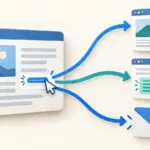
Create HTML links with absolute or relative URLs, jump to a document fragment, and add email, new-tab, or download links. Learn what to verify before publishing.

HTML Tutorial / Embed Audio, Video, and External Content
Add audio and video controls, captions, and an iframe while checking file paths, formats, accessibility, and external embed policies.