
HTML Tutorial / Basic Structure of an HTML Document
An HTML document begins with a <!doctype html> declaration, followed by the root html element. Inside html, head holds document metadata while body holds the page's main content. You can save the example below as an HTML file and open it in a browser.
The basic shape of an HTML document
Start by looking at the complete example. The outer html element contains both head and body.
<!doctype html>
<html lang="en">
  <head>
    <meta charset="utf-8">
    <meta name="viewport" content="width=device-width, initial-scale=1">
    <title>My First HTML Document</title>
  </head>
  <body>
    <h1>Hello</h1>
    <p>This is the document body.</p>
  </body>
</html>
Indentation makes it easier to see which elements are nested inside others. The browser interprets the tags to build the document structure; the heading and paragraph inside body are the content you mainly see on the page.
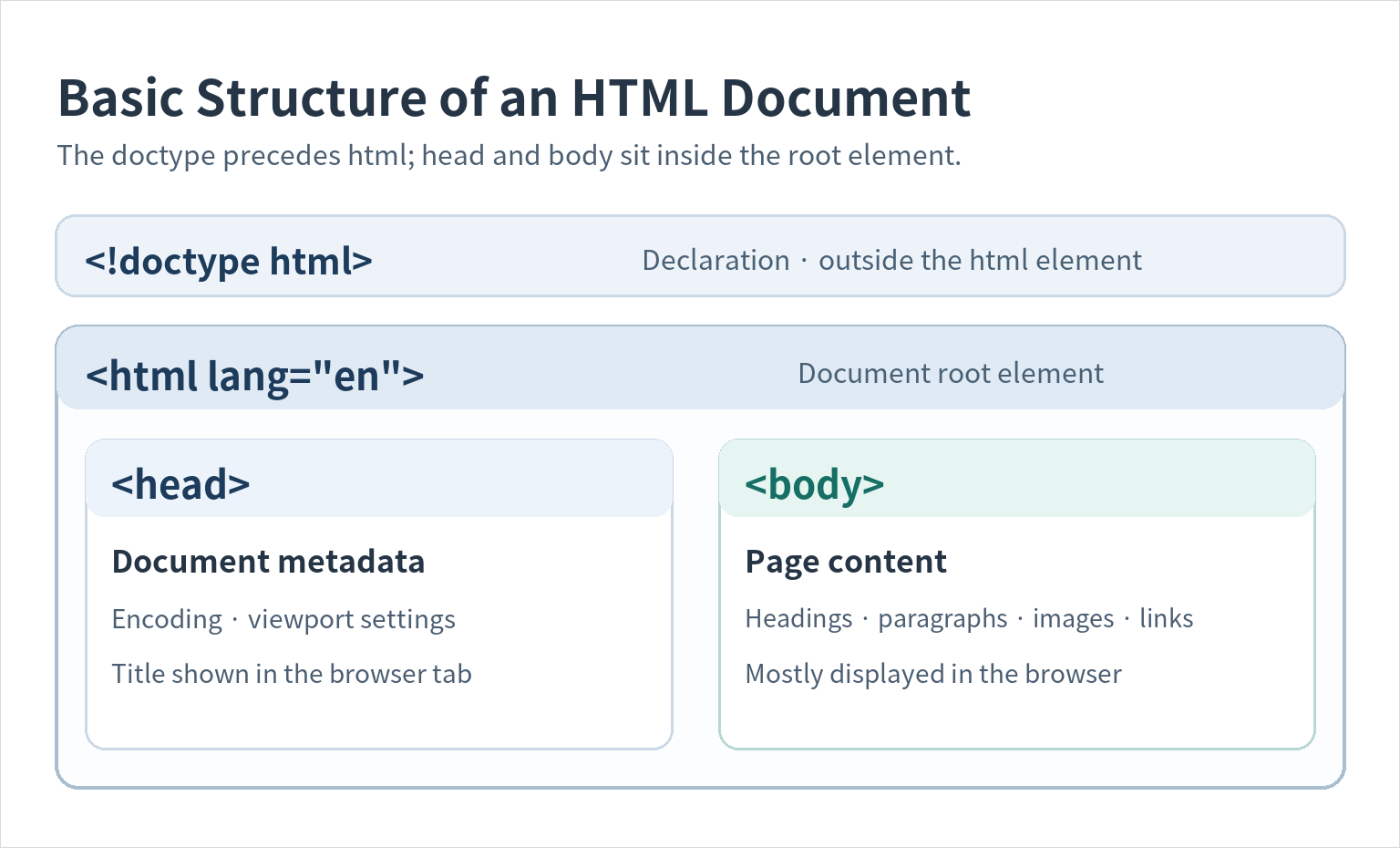
What does each part do?
<!doctype html>: Declares the document as HTML. It is not an HTML element. Placing it at the beginning helps the browser use standards mode.<html lang="en">: The root element of the document.lang="en"identifies English as the main language, which helps tools such as screen readers choose the appropriate pronunciation.<head>: Contains metadata such as the document title, character encoding, and viewport settings. Its contents do not all appear directly in the page body.<body>: Contains the page's main content, including headings, paragraphs, images, and links.
The HTML standard permits certain start and end tags to be omitted, but writing html, head, and body explicitly makes the structure easier to follow when you are learning. The WHATWG HTML standard's descriptions of document elements provide the detailed definitions.
Three settings inside head
The example's head contains three useful settings to recognize in a first HTML document.
meta charset="utf-8": Declares UTF-8 as the document's character encoding. Save the file as UTF-8 too, so its characters display correctly. Put the encoding declaration near the beginning of the document.meta name="viewport": Sets the layout viewport width to the device width on mobile browsers. This tag alone does not make a design responsive.title: Sets the document title, which appears in places such as the browser tab. It serves a different purpose from anh1heading shown in the page body.
Notice the difference between title and h1 in the example: the browser tab says “My First HTML Document,” while the heading visible on the page says “Hello.”
Save the HTML file and open it in a browser
Use the first code block to create a real file and check the result. You only need a plain-text editor and a web browser; save the code as plain text rather than a formatted document.
- Create a working folder, open a new file in a text editor, and paste in the entire first code block.
- Save the file in that folder as
index.html. Choose UTF-8 if the editor asks for an encoding.index.htmlis a common name for a site's first page, but another filename ending in.htmlalso works for this exercise. - Double-click
index.htmlin your file manager. If a different application opens, use “Open with” to choose a web browser, or drag the file into a browser window. - Check that the browser tab says “My First HTML Document” and the page shows “Hello” above “This is the document body.” The address bar shows a
file://URL for the local file. - Change the text inside
titleandh1in the editor, save the file, and refresh the browser. Compare the updated tab title and on-page heading.
Opening a file:// URL reads a file on your own computer. Sending that URL to someone else does not give them access to your copy; to share the page on the web, you need to upload its files to a web server or hosting service.
If the result is not what you expected
- The browser shows the tags as text: Check whether the actual filename ends in
.txt, for exampleindex.html.txt. Some editors add that extension when saving a text document. If necessary, select “All files” or the equivalent in the Save dialog and save it asindex.html. Showing filename extensions in the file manager helps you verify the name. - Your changes do not appear: Save the file in the editor and refresh the browser. If several folders contain a file with the same name, compare the browser's file path with the folder where you saved your changes.
- Characters look garbled: Check that you saved the file as UTF-8 and kept the
<meta charset="utf-8">declaration in the document. - The page is blank: Make sure you opened the intended file and that the heading and paragraph are still inside
body.
For more on opening and organizing local HTML files, see MDN's guide to dealing with files.

HTML Tutorial / Basic Structure of an HTML Document
Learn the roles of doctype, html, head, and body, then save your first HTML file and open it in a browser. Includes a complete example, a diagram, and fixes for common filename, refresh, and encoding problems.

HTML Tutorial / Headings and Paragraphs
Learn when to use h1–h6 headings, p paragraphs, and br line breaks in HTML. Examples show document hierarchy, browser output, and common mistakes.

HTML Tutorial / What Is HTML and What Does It Do on a Web Page?
HTML gives web content structure and meaning. Learn how it differs from CSS and JavaScript, see how basic markup appears in a browser, and make your first HTML file.
Learn the essential rules of HTML syntax, including elements, tags, attributes, void elements, comments, nesting, and the structure of a complete HTML document.

HTML Tutorial / Text Semantics: Emphasis, Quotations, Abbreviations, and Code
Learn when to use HTML em, strong, q, blockquote, abbr, code, and kbd. Examples show how each element conveys meaning rather than just changing the appearance of text.