
HTML Tutorial / Create Expandable Content with details and summary
details and summary create content users can expand and collapse without writing JavaScript. They suit optional explanations, longer instructions, or answers readers may want to reveal on demand.
Create a basic disclosure
<details>
  <summary>View opening hours</summary>
  <p>We are open Monday through Friday, 9 a.m. to 6 p.m.</p>
</details>
Put the code in an HTML document's body and open it in a browser. Initially, only “View opening hours” appears. Activate that text with a pointer or keyboard to reveal the paragraph; activate it again to close it. Put summary first inside details. The browser supplies the basic disclosure state and interaction; you do not need a script merely to open and close it.
The marker and borders can look different across browsers or after CSS styling. What matters is that the label remains clear, the content opens and closes, and the keyboard focus remains visible.
Show the content initially
Add the open attribute when the panel should start expanded. Users can still close and reopen it.
<details open>
  <summary>Delivery information</summary>
  <p>Arrival times vary by area.</p>
</details>
open is a boolean attribute. Writing open="false" still leaves the attribute present and starts the panel open. Remove the attribute entirely to start closed. Do not hide a condition everyone must read as though it were optional supplementary information.
Choose useful summaries
Several details elements can appear together, but each summary should identify what it reveals. Repeating “More information” makes the items hard to distinguish. A frequently asked question may fit this pattern, but if its answer is short and immediately useful, ordinary visible text may be faster for readers.
Test the result with a keyboard and on a narrow screen. The MDN details reference describes its structure and attributes.
If it does not work
Check that summary is inside details and that the closing tags are present. If you styled the control, make sure the clickable area and visible focus indicator were not removed. A disclosure makes readers take an extra action, so reserve it for genuinely optional or lengthy content rather than using it just for visual effect.
HTML Tutorial / Form Validation with required, Length, and Range Limits
Apply built-in required, length, and numeric constraints, test error states, and understand why server-side validation remains necessary.

HTML Tutorial / Embed Audio, Video, and External Content
Add audio and video controls, captions, and an iframe while checking file paths, formats, accessibility, and external embed policies.
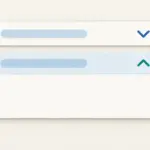
HTML Tutorial / Create Expandable Content with details and summary
Create keyboard-operable expandable content with details and summary, and decide when to start it open or show content directly.

HTML Tutorial / Headings and Paragraphs
Learn when to use h1–h6 headings, p paragraphs, and br line breaks in HTML. Examples show document hierarchy, browser output, and common mistakes.

HTML Tutorial / Responsive Images: srcset, sizes, and picture
Offer image resolutions with srcset and sizes, and switch crops with picture. Downloadable files let you test the examples in a browser.

HTML Tutorial / Accessibility Basics: Headings, Links, Images, and Keyboard
Review heading hierarchy, meaningful link text, image alternatives, and keyboard interaction as practical foundations of accessible HTML.
HTML Tutorial / Add Placeholder Text to Form Fields
Learn how to add placeholder hints to HTML input and textarea fields without confusing them with labels or initial values. Includes a complete form example, required-field checks, and an explanation of empty values in submitted data.

HTML Tutorial / Accessible Tables: caption, scope, and Spanning Cells
Make table headings and data relationships clear with caption, th, and scope, and learn when colspan or rowspan makes a table harder to read.

HTML Tutorial / What Is HTML and What Does It Do on a Web Page?
HTML gives web content structure and meaning. Learn how it differs from CSS and JavaScript, see how basic markup appears in a browser, and make your first HTML file.
HTML Tutorial / Explain Forms with fieldset, legend, and autocomplete
Group related controls with fieldset and legend, and use suitable autocomplete tokens to describe the purpose of input fields.