
CSS / Reference / list-style-type: Change List Markers and Numbering
list-style-type sets a list marker’s shape or numbering style. Styling does not change the meaning of ul and ol: use an ordered list when order matters, then choose its visual numbering.
Syntax and value choices
| Property | Initial value | Inherited | Main application conditions |
|---|---|---|---|
list-style-type |
disc | Yes | Elements generating list-item boxes |
Initial values are not necessarily the values assigned to HTML elements by the browser’s stylesheet. Inspect the actual result in developer tools’ Computed panel.
ol { list-style-type: lower-roman; }
ul { list-style-type: square; }
| Value or category | Behavior and choice |
|---|---|
disc / circle / square |
Filled-circle, open-circle, or square markers. |
decimal |
Decimal numbering. |
lower-roman |
Lowercase Roman numerals. |
none |
Do not paint a list marker. |
For supported values and conditions, see MDN list-style-type.
Run the example and compare results
Save this complete code as css-reference-10537-example.html in UTF-8 and open it in a browser. Keep its demonstration styles in that file rather than pasting them into a site-wide stylesheet.
<!doctype html>
<html lang="en">
<head>
<meta charset="utf-8">
<meta name="viewport" content="width=device-width, initial-scale=1">
<title>list-style-type comparison example</title>
<style>
body { margin: 0; color: #20242b; background: #fff; font: 16px/1.7 "Malgun Gothic", sans-serif; }
#demo { padding: 24px; max-width: 820px; margin: auto; }
h1 { font-size: 22px; margin: 0 0 20px; }
.samples { display: flex; flex-wrap: wrap; gap: 24px; }
.label { margin: 0 0 8px; font-weight: 700; }
.target { list-style-type: lower-roman; padding-inline-start: 2em; }
.reference { list-style-type: square; padding-inline-start: 2em; }
</style>
</head>
<body>
<main id="demo">
<h1>list-style-type comparison</h1>
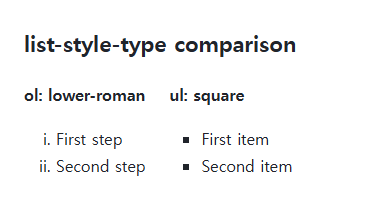
<section class="samples"><div><p class="label">ol: lower-roman</p><ol class="target"><li>First step</li><li>Second step</li></ol></div><div><p class="label">ul: square</p><ul class="reference"><li>First item</li><li>Second item</li></ul></div></section>
</main>
</body>
</html>
The ordered list shows i and ii; the unordered list uses squares. HTML start values remain part of the ordered list’s numbering behavior.
Marker generation and the shorthand
The property affects markers on list-item boxes. A working list-style-image can take visual precedence. A later list-style shorthand resets type, position, and image together, so inspect the final rules.
Removing markers while keeping meaning
none hides the marker rather than changing the HTML element. Some browser and assistive-technology combinations handle markerless lists differently, so check meaningful navigation structures. Typing manual numbers into text separates the numbering from the list semantics.
Change one setting at a time
Use the complete example file above. Change only the specified selector or value rather than several comparison conditions at once.
- Change only ol.target’s list-style-type among decimal, lower-roman, and none. The item order stays the same; restore lower-roman.
- Add start="3" to that ol start tag to begin with iii and iv, then remove it. Distinguish visual numbering style from a changed starting number.
For combining marker placement with paragraph and list layout, see CSS Paragraph and List Styling.
For styling the marker itself, see MDN ::marker.
For display modes and normal flow, see CSS display: Block, Inline, inline-block, and Hiding. Related properties to compare alongside these conditions are list-style-position.
When the result is missing or unexpected
- Inspect display, list-style-image, and clipping if the marker is absent.
- Choose ul or ol by meaning before choosing a marker shape.

CSS / Reference / text-indent: First-Line Indents and Hanging Paragraphs
Create first-line and hanging indents, distinguish them from paragraph padding, and check inheritance, writing direction, and narrow-screen clipping.
CSS / Reference / content: Generate Pseudo-Element Text and Decoration
Generate strings, attribute labels, counters, and decorative pseudo-elements. Compare none with an empty string and retain important information in real HTML.

CSS / Reference / calc(): Calculate CSS Values and Understand Their Types
Combine percentages and lengths with calc(), inspect the actual parent width, and distinguish invalid expressions from newer typed arithmetic and special numeric results.
CSS / Reference / empty-cells: Show or Hide Empty Table Cells
Control empty-cell borders and backgrounds in a separated table while preserving its structure. Compare show, hide, whitespace, and the collapsed-border exception.

CSS / Reference / background-attachment: Viewport, Box, and Internal Scroll Attachment
Compare local and scroll backgrounds inside a scrolling box and distinguish them from viewport-fixed backgrounds. Test target-browser behavior and a usable fallback.
CSS / Reference / list-style-type: Change List Markers and Numbering
Style list markers while keeping ordered and unordered semantics. Compare numbering styles, starting values, marker removal, and shorthand resets.
CSS / Reference / font-variant: Small Capitals and Font Features
Use small capitals without changing the source string and choose specific variant longhands. Compare real font support with synthesized presentation.
CSS / Reference / font-size: Understand px, em, rem, and Text Enlargement
Choose text-size units by their reference and test nested em scaling. Check the actual root size, browser enlargement, and layout constraints.
CSS / Reference / background-size: Cover, Contain, and Background Sizing
Compare background cover and contain using a known image ratio. Account for positioning areas, percentages, cropping, repeated tiles, and the element’s own size.
CSS / Reference / letter-spacing, word-spacing: Compare Character and Word Spacing
Adjust character and word gaps independently using the same text and a normal baseline. Account for inheritance, language, wrapping, and excessive negative spacing.