
CSS / Reference / border-style: Border Patterns, Side Order, and Hidden Conflicts
border-style specifies the border patterns on the four sides of a box. The initial style is none, so a width and color alone need not produce a visible border.
Syntax and value choices
| Property | Initial value | Inherited | Main application conditions |
|---|---|---|---|
border-style |
none (all four sides) | No | All elements; visible effects depend on the text, image, or box conditions below |
Initial values are not necessarily the values assigned to HTML elements by the browser’s stylesheet. Inspect the actual result in developer tools’ Computed panel.
.card { border: 2px solid #006c9c; }
.box { border-style: solid dashed dotted double; }
| Value or category | Behavior and choice |
|---|---|
solid / dashed / dotted |
Solid, dashed, or dotted borders. |
double |
Two lines, most clearly distinguished with enough width. |
none / hidden |
No ordinary box border; collapsed-table conflict rules differ. |
One to four values |
Set all sides or side groups using the standard shorthand order. |
For supported values and conditions, see MDN border-style.
Run the example and compare results
Save this complete code as css-reference-10622-example.html in UTF-8 and open it in a browser. Keep its demonstration styles in that file rather than pasting them into a site-wide stylesheet.
<!doctype html>
<html lang="en">
<head>
<meta charset="utf-8">
<meta name="viewport" content="width=device-width, initial-scale=1">
<title>border-style comparison example</title>
<style>
body { margin: 0; color: #20242b; background: #fff; font: 16px/1.7 "Malgun Gothic", sans-serif; }
#demo { padding: 24px; max-width: 820px; margin: auto; }
h1 { font-size: 22px; margin: 0 0 20px; }
.samples { display: flex; flex-wrap: wrap; gap: 24px; }
.label { margin: 0 0 8px; font-weight: 700; }
.target, .reference { width: 220px; height: 100px; padding: 12px; border-width: 6px; border-color: #006c9c; }
.target { border-style: solid dashed dotted double; }
.reference { border-style: none; }
</style>
</head>
<body>
<main id="demo">
<h1>border-style comparison</h1>
<section class="samples"><div class="a"><p class="label">A different style on each side</p><div class="target">Border comparison</div></div><div class="b"><p class="label">none</p><div class="reference">Border comparison</div></div></section>
</main>
</body>
</html>
Inspect top, right, bottom, and left on the first box. The none box paints no border, even when a border width was specified.
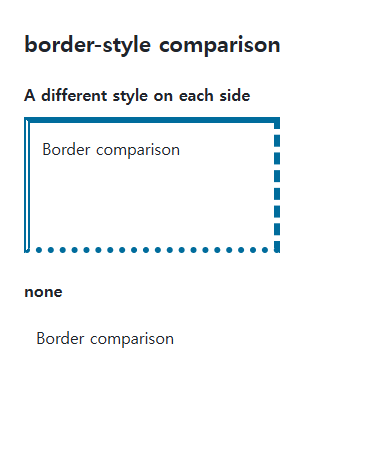
Side ordering
Four values start at the top and proceed clockwise. Two values mean top/bottom and left/right; three mean top, left/right, and bottom. Match each side’s style with its width and color.
Shorthand resets and table conflicts
A later border shorthand can reset earlier side styles. none and hidden look similar on an ordinary box but have different precedence in collapsed-table border conflicts. A none style can also make the computed width zero.
Save this complete document as css-reference-10622-practice.html in UTF-8 and open it in a browser. Test it as a separate file rather than nesting it inside another example.
<!doctype html>
<html lang="en">
<head>
  <meta charset="utf-8">
  <meta name="viewport" content="width=device-width, initial-scale=1">
  <title>Compare none and hidden in collapsed tables</title>
  <style>
    body { margin: 16px; color: #20242b; font: 16px/1.7 sans-serif; }
    main { max-width: 52rem; margin: auto; }
    h1 { font-size: 1.35rem; }
    .samples { display: flex; flex-wrap: wrap; gap: 24px; }
    .samples > * { max-width: 100%; min-width: 0; }
    :focus-visible { outline: 3px solid #005fcc; outline-offset: 3px; }
table { border-collapse:collapse;margin-bottom:20px; } td { padding:12px; } .left { border-right:6px solid #006c9c; } .none { border-left:6px none #006c9c; } .hidden { border-left:6px hidden #006c9c; }
  </style>
</head>
<body>
<main>
  <h1>Compare none and hidden in collapsed tables</h1>
<p>none</p><table><tr><td class="left">Left</td><td class="none">Right</td></tr></table><p>hidden</p><table><tr><td class="left">Left</td><td class="hidden">Right</td></tr></table>
</main>
</body>
</html>
The neighbor’s solid border wins beside none; hidden suppresses other styles on that shared collapsed border. Change only .hidden to none, compare both tables, then restore hidden. Distinguish ordinary invisible borders from collapsed-table conflict precedence.
For using borders and shadows together on components, see CSS Borders, Rounded Corners, and Shadows. Related properties to compare alongside these conditions are border-width.
When the result is missing or unexpected
- Check for none when width and color are correct but no border appears.
- Use sufficient width and inspect zoom if a double border looks solid.

CSS / Reference / background-image: Images, Gradients, Relative Paths, and Layers
Paint gradients or image layers, resolve paths from the correct stylesheet location, and keep meaningful pictures in accessible HTML rather than background decoration.
CSS / Reference / background-size: Cover, Contain, and Background Sizing
Compare background cover and contain using a known image ratio. Account for positioning areas, percentages, cropping, repeated tiles, and the element’s own size.

CSS / Reference / quotes: Choose Nested Quotation Marks
Choose generated quotation pairs for nested text and distinguish them from literal punctuation. Compare automatic marks, none, and quotation-depth operations.

CSS / Reference / clip: Understand Legacy Clip and Migrate to Clip-Path
Read legacy rect coordinates and compare them with clip-path inset distances. Keep layout sizing and clipping separate when migrating existing CSS.
CSS / Reference / font-style: Italic, Oblique, and Available Font Faces
Request italic or oblique forms while accounting for real faces and synthesis. Separate visual styling from emphasis semantics and inspect font-loading failures.
CSS / Reference / list-style-type: Change List Markers and Numbering
Style list markers while keeping ordered and unordered semantics. Compare numbering styles, starting values, marker removal, and shorthand resets.
CSS / Reference / border-spacing: Separate Cell Gaps and Collapsed Borders
Set horizontal and vertical gaps in separate-border tables. Distinguish cell padding, zero spacing, collapsed borders, and browser default styles.
CSS / Reference / text-indent: First-Line Indents and Hanging Paragraphs
Create first-line and hanging indents, distinguish them from paragraph padding, and check inheritance, writing direction, and narrow-screen clipping.
CSS / Reference / font-size: Understand px, em, rem, and Text Enlargement
Choose text-size units by their reference and test nested em scaling. Check the actual root size, browser enlargement, and layout constraints.

CSS / Reference / box-sizing: Content and Border Boxes, Including Small-Size Limits
Calculate content-box and border-box sizes, including margins and the minimum content-size limit. Apply resets deliberately and check external components.