
CSS / Reference / overflow: Visible Overflow, Scrolling, Hidden, and Clip
overflow controls content that exceeds a box: show it, clip it, or make it scrollable. auto permits scrolling when needed; hidden and clip have different scroll-container behavior.
Syntax and value choices
| Property | Initial value | Inherited | Main application conditions |
|---|---|---|---|
overflow |
visible | No | Overflow of block, Flex, and Grid containers |
Initial values are not necessarily the values assigned to HTML elements by the browser’s stylesheet. Inspect the actual result in developer tools’ Computed panel.
.panel { max-height: 12rem; overflow: auto; }
.decoration { overflow: clip; }
| Value or category | Behavior and choice |
|---|---|
visible |
Let overflow remain visible without creating the usual scroll container. |
hidden |
Clip content, while programmatic scrolling remains possible. |
clip |
Clip content without allowing scrolling. |
scroll |
Provide scroll-container behavior; scrollbar appearance depends on the environment. |
auto |
Provide scrolling when overflow requires it. |
For supported values and conditions, see MDN overflow.
Run the example and compare results
Save this complete code as css-reference-10599-example.html in UTF-8 and open it in a browser. Keep its demonstration styles in that file rather than pasting them into a site-wide stylesheet.
<!doctype html>
<html lang="en">
<head>
<meta charset="utf-8">
<meta name="viewport" content="width=device-width, initial-scale=1">
<title>overflow comparison example</title>
<style>
body { margin: 0; color: #20242b; background: #fff; font: 16px/1.7 "Malgun Gothic", sans-serif; }
#demo { padding: 24px; max-width: 820px; margin: auto; }
h1 { font-size: 22px; margin: 0 0 20px; }
.samples { display: flex; flex-wrap: wrap; gap: 24px; }
.label { margin: 0 0 8px; font-weight: 700; }
.target, .reference { width: 240px; height: 120px; border: 2px solid #006c9c; }
.target { overflow: auto; }
.reference { overflow: hidden; }
.long { height: 280px; background: linear-gradient(#bfe3ff, #ffd166); }
</style>
</head>
<body>
<main id="demo">
<h1>overflow comparison</h1>
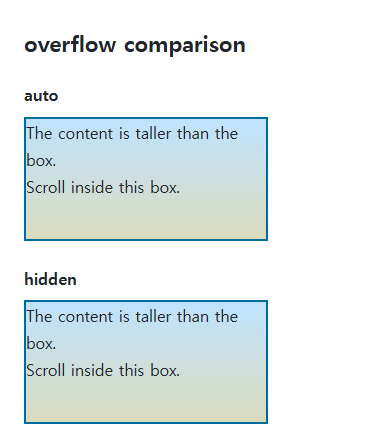
<section class="samples"><div class="a"><p class="label">auto</p><div class="target"><div class="long">The content is taller than the box.<br>Scroll inside this box.</div></div></div><div class="b"><p class="label">hidden</p><div class="reference"><div class="long">The content is taller than the box.<br>Scroll inside this box.</div></div></div></section>
</main>
</body>
</html>
The auto box can scroll through its taller content. Hidden clips the content and provides no ordinary user scrollbar, but that does not make it equivalent to clip.
Size constraints and axis interactions
Overflow requires a limiting size; an unconstrained block may simply grow. Two values specify horizontal then vertical overflow. Values on one axis can change the computed value on the other, so inspect final overflow-x and overflow-y.
Clipping and scrolling are separate choices
Hidden remains programmatically scrollable; clip does not. Clip alone does not establish a new block formatting context; combine it with flow-root when that separate behavior is needed. Inspect clipped focus outlines and form instructions as well.
Save this complete document as css-reference-10599-practice.html in UTF-8 and open it in a browser. Test it as a separate file rather than nesting it inside another example.
<!doctype html>
<html lang="en">
<head>
  <meta charset="utf-8">
  <meta name="viewport" content="width=device-width, initial-scale=1">
  <title>Observe hidden versus clip scrolling</title>
  <style>
    body { margin: 16px; color: #20242b; font: 16px/1.7 sans-serif; }
    main { max-width: 52rem; margin: auto; }
    h1 { font-size: 1.35rem; }
    .samples { display: flex; flex-wrap: wrap; gap: 24px; }
    .samples > * { max-width: 100%; min-width: 0; }
    :focus-visible { outline: 3px solid #005fcc; outline-offset: 3px; }
.box { height:100px;max-width:240px;border:2px solid #718096;background:#e6f2ff; } .tall { height:260px;background:linear-gradient(#006c9c,#ffd166); } #hidden {overflow:hidden;} #clip {overflow:clip;}
  </style>
</head>
<body>
<main>
  <h1>Observe hidden versus clip scrolling</h1>
<p>hidden</p><div class="box" id="hidden"><div class="tall"></div></div><p>clip</p><div class="box" id="clip"><div class="tall"></div></div><button id="test" type="button">Test scrollTop = 50</button> <button id="reset" type="button">Reset</button><p id="result" aria-live="polite"></p><script>function test(value){const h=document.getElementById("hidden"),c=document.getElementById("clip");h.scrollTop=value;c.scrollTop=value;document.getElementById("result").textContent="hidden: "+h.scrollTop+" / clip: "+c.scrollTop;}document.getElementById("test").onclick=()=>test(50);document.getElementById("reset").onclick=()=>test(0);</script>
</main>
</body>
</html>
Expect hidden: 50 and clip: 0 after testing. Neither shows a scrollbar, but hidden is a scroll container and clip is not. Reset returns hidden to zero. Mixed axis values can change computed overflow, so this comparison specifies both axes together.
For overflow causes and usable scroll regions, see CSS Overflow, Long Text Wrapping, and Ellipsis. Related properties to compare alongside these conditions are white-space.
When the result is missing or unexpected
- Check actual width, height, and max-size constraints when auto appears ineffective.
- Inspect flex minimum sizes before assuming wrapping or overflow alone can shrink an item.

CSS / Reference / white-space: Preserve Spaces, Line Breaks, and Wrapping
Choose whitespace behavior by preservation and wrapping needs. Compare traditional values and break-spaces, and handle long words with separate wrapping properties.

CSS / Reference / background-clip: Background Painting Areas and Text Clipping
Choose border, padding, or content painting areas independently of image positioning. Compare visible boundaries and plan readable fallbacks for text-clipped backgrounds.

CSS / Reference / text-indent: First-Line Indents and Hanging Paragraphs
Create first-line and hanging indents, distinguish them from paragraph padding, and check inheritance, writing direction, and narrow-screen clipping.
CSS / Reference / font-style: Italic, Oblique, and Available Font Faces
Request italic or oblique forms while accounting for real faces and synthesis. Separate visual styling from emphasis semantics and inspect font-loading failures.

CSS / Reference / list-style-type: Change List Markers and Numbering
Style list markers while keeping ordered and unordered semantics. Compare numbering styles, starting values, marker removal, and shorthand resets.
CSS / Reference / overflow: Visible Overflow, Scrolling, Hidden, and Clip
Choose clipping and scrolling behavior with appropriate size constraints. Compare hidden with clip and inspect axis interactions and flex minimum sizes.
CSS / Reference / font-variant: Small Capitals and Font Features
Use small capitals without changing the source string and choose specific variant longhands. Compare real font support with synthesized presentation.
CSS / Reference / content: Generate Pseudo-Element Text and Decoration
Generate strings, attribute labels, counters, and decorative pseudo-elements. Compare none with an empty string and retain important information in real HTML.
CSS / Reference / background-origin: Positioning References Versus Painting Boundaries
Choose a background image’s positioning box and distinguish it from background-clip. Compare how padding, borders, percentage sizes, and fixed attachment affect the reference.
CSS / Reference / quotes: Choose Nested Quotation Marks
Choose generated quotation pairs for nested text and distinguish them from literal punctuation. Compare automatic marks, none, and quotation-depth operations.