
HTML Tutorial / Links: Paths, Page Fragments, and Email
Create an HTML link with the a element and put its destination in href. The destination can be another page, a file, a location within a document, or an email address. Write link text that tells readers where they will go.
Create a basic link with a and href
Wrap the visible link text in a and put the target URL in href. This example leads to Coding Factory's Korean-language tutorial on HTML lists.
<a href="https://www.codingfactory.net/10225">HTML lists tutorial (Korean)</a>
“HTML lists tutorial (Korean)” is the visible text; the URL is the destination. An a without href is not a normal navigation link. Using href="#" as a placeholder can cause unexpected navigation to the top of the page.
Understand absolute and relative URLs
An absolute URL beginning with https:// includes the destination's domain. A relative URL can point to a file from the current document's location or from the site's root.
The following about.html and ../contact.html paths are practice examples, not pages that currently exist on Coding Factory. Assume you are writing the links in lessons/index.html in this folder structure:
site/
  contact.html
  lessons/
    index.html
    about.html
<a href="https://www.codingfactory.net/10225">Full URL</a>
<a href="about.html">About page in this folder</a>
<a href="../contact.html">Contact page one folder up</a>
<a href="/10225">HTML lists on this site</a>
about.html is resolved relative to the current document. A path beginning with / is resolved from the website's root. Local file:// files have a different root from a deployed website, so test relative paths again after deployment.
Link to a location within a document
Give the destination element a unique id, then use # followed by that value in the link.
<a href="#contact">Go to contact details</a>

<h2 id="contact">Contact</h2>
<p>Contact information goes here.</p>
To reach a location in another file, append the fragment to its URL: about.html#contact. Avoid repeating the same id within one page.
Email links and new tabs
A mailto: URL asks the user's email application to start a message. It may not work as expected if no mail app is configured.
<a href="mailto:hello@example.com">Send an email</a>
To open an external site in a new tab, use target="_blank" and the site's rel="noopener noreferrer" policy.
<a href="https://developer.mozilla.org/en-US/docs/Web/HTML/Reference/Elements/a"
   target="_blank" rel="noopener noreferrer">MDN's a element reference</a>
Choose a new tab when it suits the reader's task, and make the behavior clear in the link text or nearby explanation.
What the download attribute can do
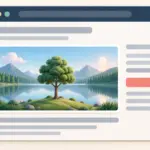
The download attribute asks the browser to download a linked file. For example, it can be used for this image hosted on the same site.
<a href="/wp-content/uploads/html-image-sample-lake-tree-1600-v1.webp" download>Download the example image</a>
download works with same-origin URLs and with blob: and data: URLs. It cannot force a regular URL on another site to download. Even for a same-origin file, browser settings and the server response can affect what happens.
Check links before publishing
- Use text such as “HTML lists tutorial (Korean)” rather than “click here.”
- Test relative paths from the document's actual deployed location.
- Check that a
#idfragment exactly matches its destination. - Remember that email and download links depend on the browser and user environment.
See MDN's a element reference for more URL and attribute details.

HTML Tutorial / What Is HTML and What Does It Do on a Web Page?
HTML gives web content structure and meaning. Learn how it differs from CSS and JavaScript, see how basic markup appears in a browser, and make your first HTML file.
Learn the essential rules of HTML syntax, including elements, tags, attributes, void elements, comments, nesting, and the structure of a complete HTML document.

HTML Tutorial / Basic Structure of an HTML Document
Learn the roles of doctype, html, head, and body, then save your first HTML file and open it in a browser. Includes a complete example, a diagram, and fixes for common filename, refresh, and encoding problems.
HTML Tutorial / Headings and Paragraphs
Learn when to use h1–h6 headings, p paragraphs, and br line breaks in HTML. Examples show document hierarchy, browser output, and common mistakes.

HTML Tutorial / Responsive Images: srcset, sizes, and picture
Offer image resolutions with srcset and sizes, and switch crops with picture. Downloadable files let you test the examples in a browser.

HTML Tutorial / Links: Paths, Page Fragments, and Email
Create HTML links with absolute or relative URLs, jump to a document fragment, and add email, new-tab, or download links. Learn what to verify before publishing.
HTML Tutorial / Text Semantics: Emphasis, Quotations, Abbreviations, and Code
Learn when to use HTML em, strong, q, blockquote, abbr, code, and kbd. Examples show how each element conveys meaning rather than just changing the appearance of text.
HTML Tutorial / Images: img, Alt Text, and Dimensions
Add an image with HTML img, write useful alternative text, and set width and height correctly. A downloadable example helps you test file paths and sizing.

HTML Tutorial / Lists: ul, ol, dl, and Nested Lists
Choose the right HTML list for ordered items, unordered items, and name–description pairs. Try a complete example, custom numbering, and correctly nested lists.