
HTML Tutorial / Lists: ul, ol, dl, and Nested Lists
Choose ol when the order of items matters, ul when it does not, and dl for names paired with descriptions or values. These elements describe relationships between items; their default numbers and bullets are only a presentation.
When should you use ol, ul, or dl?
| Element | When to use it | Example |
|---|---|---|
ol |
Changing the order changes the meaning. | Instructions, rankings |
ul |
The order is not essential. | Supplies, features |
dl |
Names are paired with values or descriptions. | Glossary, metadata |
Items in ol and ul use li. In a dl, dt supplies a name and dd supplies its description or value.
Try all three list types in one file
Save this code as an HTML file and open it in a browser to compare the default list presentations. The font is specified in CSS so the example and its screenshot have a consistent appearance.
<!doctype html>
<html lang="en">
  <head>
    <meta charset="utf-8">
    <title>HTML lists</title>
    <style>
      body { font-family: "Noto Sans KR", sans-serif; }
    </style>
  </head>
  <body>
    <h1>Planning a trip</h1>
    <h2>Supplies</h2>
    <ul>
      <li>Water</li>
      <li>Map</li>
    </ul>
    <h2>Steps</h2>
    <ol>
      <li>Choose dates</li>
      <li>Pack a bag</li>
    </ol>
    <h2>Terms</h2>
    <dl>
      <dt>Departure</dt>
      <dd>The day the trip begins</dd>
      <dt>Arrival</dt>
      <dd>The day you reach the destination</dd>
    </dl>
  </body>
</html>
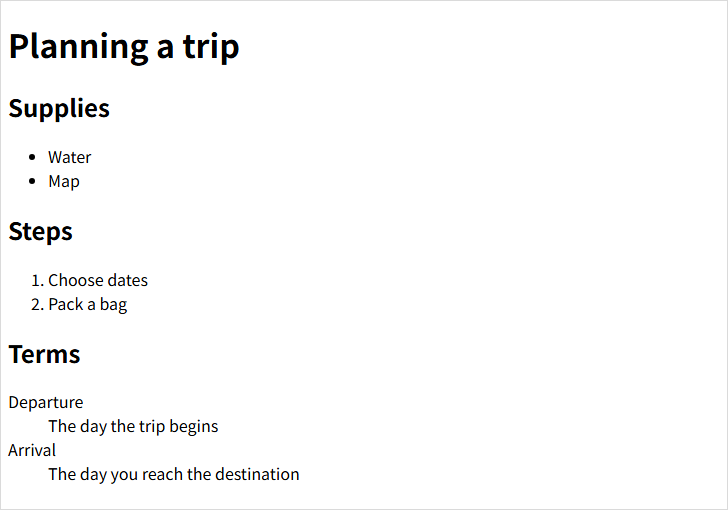
CSS can change the indentation and marker styles. The important distinction is the order or name–description relationship expressed by the HTML.
Change an ordered list's numbering
An ol starts at 1 by default. Its start attribute changes the first number; value on a particular li changes that item's number.
<ol start="5">
  <li>Fifth step</li>
  <li value="9">Ninth step</li>
  <li>Tenth step</li>
</ol>
The markers are 5, 9, and 10. Use reversed when the numbering should descend.
<ol reversed>
  <li>Third item</li>
  <li>Second item</li>
  <li>First item</li>
</ol>
Numbering attributes do not turn an unordered collection into a meaningful sequence. Choose the list type for its meaning first.
Pair names and descriptions with dl
A dl is not limited to dictionary definitions. It can pair a product property with its value or a date with its description. Keep each dt and its dd entries easy to associate.
<dl>
  <dt>Opening hours</dt>
  <dd>Weekdays, 9 a.m. to 6 p.m.</dd>
  <dt>Closed</dt>
  <dd>Saturday and Sunday</dd>
</dl>
These are fictional hours used only to demonstrate the markup.
Nest a list inside a list item
A sublist belongs inside the parent li that it expands. Here, the clothing items are a subset of the trip supplies.
<ul>
  <li>Water</li>
  <li>Clothing
    <ul>
      <li>Jacket</li>
      <li>Socks</li>
    </ul>
  </li>
</ul>
You can also nest a ul inside an ol. In this example, the main steps have a meaningful order, but the two things to pack do not.
<ol>
  <li>Choose travel dates</li>
  <li>Pack a bag
    <ul>
      <li>Clothing</li>
      <li>Toiletries</li>
    </ul>
  </li>
  <li>Leave for the trip</li>
</ol>
Do not place a sublist directly under an outer ul or ol; put it inside the relevant li. Also avoid placing an entire list inside a p. Lists and paragraphs are separate structures.
List-writing checklist
- Decide whether item order changes the meaning before choosing
olorul. - Use
lifor each item of an ordered or unordered list. - Make the
dt–ddrelationship clear in a description list. - Put a sublist inside its parent
li, and use CSS for marker appearance.
For more examples, see MDN's guide to HTML lists.

HTML Tutorial / Headings and Paragraphs
Learn when to use h1–h6 headings, p paragraphs, and br line breaks in HTML. Examples show document hierarchy, browser output, and common mistakes.

Learn the essential rules of HTML syntax, including elements, tags, attributes, void elements, comments, nesting, and the structure of a complete HTML document.

HTML Tutorial / What Is HTML and What Does It Do on a Web Page?
HTML gives web content structure and meaning. Learn how it differs from CSS and JavaScript, see how basic markup appears in a browser, and make your first HTML file.

HTML Tutorial / Text Semantics: Emphasis, Quotations, Abbreviations, and Code
Learn when to use HTML em, strong, q, blockquote, abbr, code, and kbd. Examples show how each element conveys meaning rather than just changing the appearance of text.

HTML Tutorial / Responsive Images: srcset, sizes, and picture
Offer image resolutions with srcset and sizes, and switch crops with picture. Downloadable files let you test the examples in a browser.

HTML Tutorial / Links: Paths, Page Fragments, and Email
Create HTML links with absolute or relative URLs, jump to a document fragment, and add email, new-tab, or download links. Learn what to verify before publishing.

HTML Tutorial / Basic Structure of an HTML Document
Learn the roles of doctype, html, head, and body, then save your first HTML file and open it in a browser. Includes a complete example, a diagram, and fixes for common filename, refresh, and encoding problems.

HTML Tutorial / Images: img, Alt Text, and Dimensions
Add an image with HTML img, write useful alternative text, and set width and height correctly. A downloadable example helps you test file paths and sizing.

HTML Tutorial / Lists: ul, ol, dl, and Nested Lists
Choose the right HTML list for ordered items, unordered items, and name–description pairs. Try a complete example, custom numbering, and correctly nested lists.