
HTML Tutorial / Headings and Paragraphs
Use h1 through h6 for HTML headings and p for paragraphs. Headings describe the hierarchy of a page, while paragraphs group related sentences. Use br only when you need a line break within the same paragraph, not to start a new one.
Use h1–h6 to show heading levels
HTML provides six heading levels. A page commonly uses h1 for its main title, h2 for major sections, and h3 for topics within those sections. A heading's level describes where its content fits in the document; it is not a choice of font size.
<h1>Accessibility Guide</h1>

<h2>HTML Structure</h2>
<p>An overview of HTML document structure.</p>

<h3>Heading Levels</h3>
<p>How to organize headings.</p>

<h3>Paragraphs</h3>
<p>How to separate paragraphs.</p>

<h2>CSS Presentation</h2>
<p>How CSS changes the appearance of headings and paragraphs.</p>
Both h3 headings above are topics within the h2 section called “HTML Structure.” The next h2 begins another major section. When introducing a subsection, avoid skipping a level—for example, jumping straight from h2 to h4.
Clear headings help readers scan a page and help screen reader users navigate between sections. The W3C WAI guide to heading structure explains why heading levels should reflect the organization of the content.
If WordPress already displays the post title as the page's h1, you do not need another h1 for the same title in the post body. Start its main sections with h2 instead.
See headings and paragraphs in a browser
Save the following complete example as index.html and open it in a browser. It puts all six heading levels side by side for comparison; a real page only needs the levels required by its content.
<!doctype html>
<html lang="en">
  <head>
    <meta charset="utf-8">
    <title>HTML Headings and Paragraphs</title>
  </head>
  <body>
    <h1>Heading 1</h1>
    <h2>Heading 2</h2>
    <h3>Heading 3</h3>
    <h4>Heading 4</h4>
    <h5>Heading 5</h5>
    <h6>Heading 6</h6>
    <p>This is the first paragraph.</p>
    <p>This is the second paragraph.</p>
  </body>
</html>
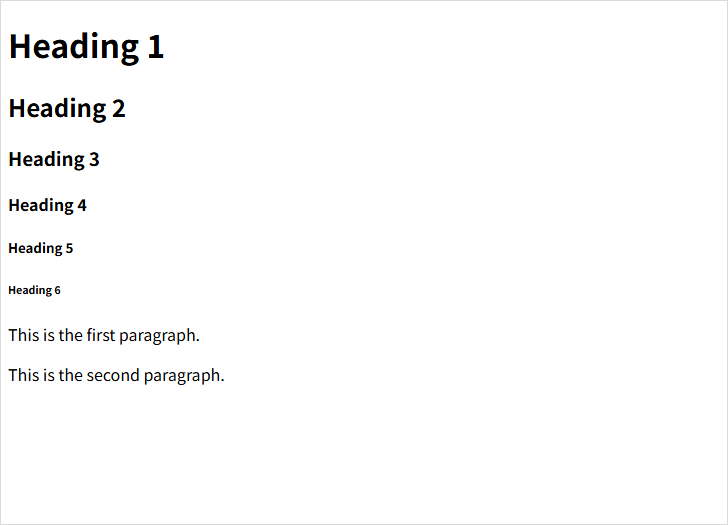
Browsers give heading levels different default sizes and spacing, but the exact appearance depends on the browser and the page's CSS. If a heading needs to look larger or smaller, change its CSS rather than using the wrong heading level.
Separate paragraphs with p
The p element marks one paragraph. Wrap distinct groups of related sentences in separate p elements so their relationship remains clear.
<p>HTML creates the structure of a web page.</p>
<p>CSS controls its appearance.</p>
This code creates two paragraphs. Adding a blank line in a text editor alone does not create a new HTML paragraph. A p can contain ordinary text and inline content such as links, but it should not contain headings, lists, or tables.
To add space between paragraphs, use a CSS property such as margin rather than inserting empty p elements or repeated br elements.
Use br for a line break within one paragraph
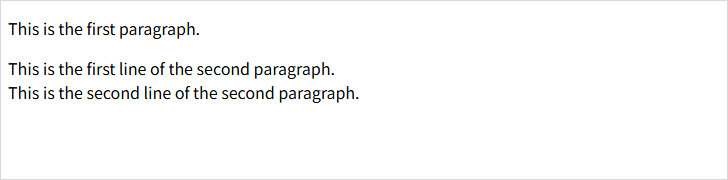
The br element starts a new line without creating a new paragraph. It is useful when the position of a line break matters, as it can in an address or a poem. If the topic changes, start another p instead.
In this example, the second p is a new paragraph. The br changes the line only inside that paragraph.
<!doctype html>
<html lang="en">
  <head>
    <meta charset="utf-8">
    <title>HTML Paragraphs and Line Breaks</title>
  </head>
  <body>
    <p>This is the first paragraph.</p>
    <p>This is the first line of the second paragraph.<br>This is the second line of the second paragraph.</p>
  </body>
</html>
Check your headings and paragraphs
- Choose
h1–h6by the structure of the content, not by the default font size. - Give each heading a descriptive name and avoid skipping a level when moving into a subsection.
- Use a new
pfor a new paragraph; usebronly for a meaningful line break within one paragraph. - Control font sizes and spacing with CSS, not empty elements or a different heading level.
To check for incorrectly nested tags, submit your HTML to the W3C Markup Validation Service.

HTML Tutorial / Basic Structure of an HTML Document
Learn the roles of doctype, html, head, and body, then save your first HTML file and open it in a browser. Includes a complete example, a diagram, and fixes for common filename, refresh, and encoding problems.

HTML Tutorial / Headings and Paragraphs
Learn when to use h1–h6 headings, p paragraphs, and br line breaks in HTML. Examples show document hierarchy, browser output, and common mistakes.

HTML Tutorial / Text Semantics: Emphasis, Quotations, Abbreviations, and Code
Learn when to use HTML em, strong, q, blockquote, abbr, code, and kbd. Examples show how each element conveys meaning rather than just changing the appearance of text.

HTML Tutorial / What Is HTML and What Does It Do on a Web Page?
HTML gives web content structure and meaning. Learn how it differs from CSS and JavaScript, see how basic markup appears in a browser, and make your first HTML file.

Learn the essential rules of HTML syntax, including elements, tags, attributes, void elements, comments, nesting, and the structure of a complete HTML document.