
MariaDB Tutorial / Connect with the Command-Line Client and Run SQL Files
Start a MariaDB connection from your terminal, then enter SQL inside the connected client. To run a saved UTF-8 SQL file, use the client’s SOURCE command with a path on the computer running the client; this path does not refer to the database server’s filesystem.
Prepare the server, account, and file
First complete the Windows setup or Ubuntu setup and verify that the server is running. The shared examples use the learning account and connection values below. Substitute the port if you intentionally chose another one.
| Item | Value or check |
|---|---|
| Protocol and host | TCP to 127.0.0.1 |
| Port | 3306 unless your instance uses a different port |
| Account | course_user with the password you chose |
| Connection character set | utf8mb4 |
| SQL file | UTF-8 text with a .sql extension, not .sql.txt |
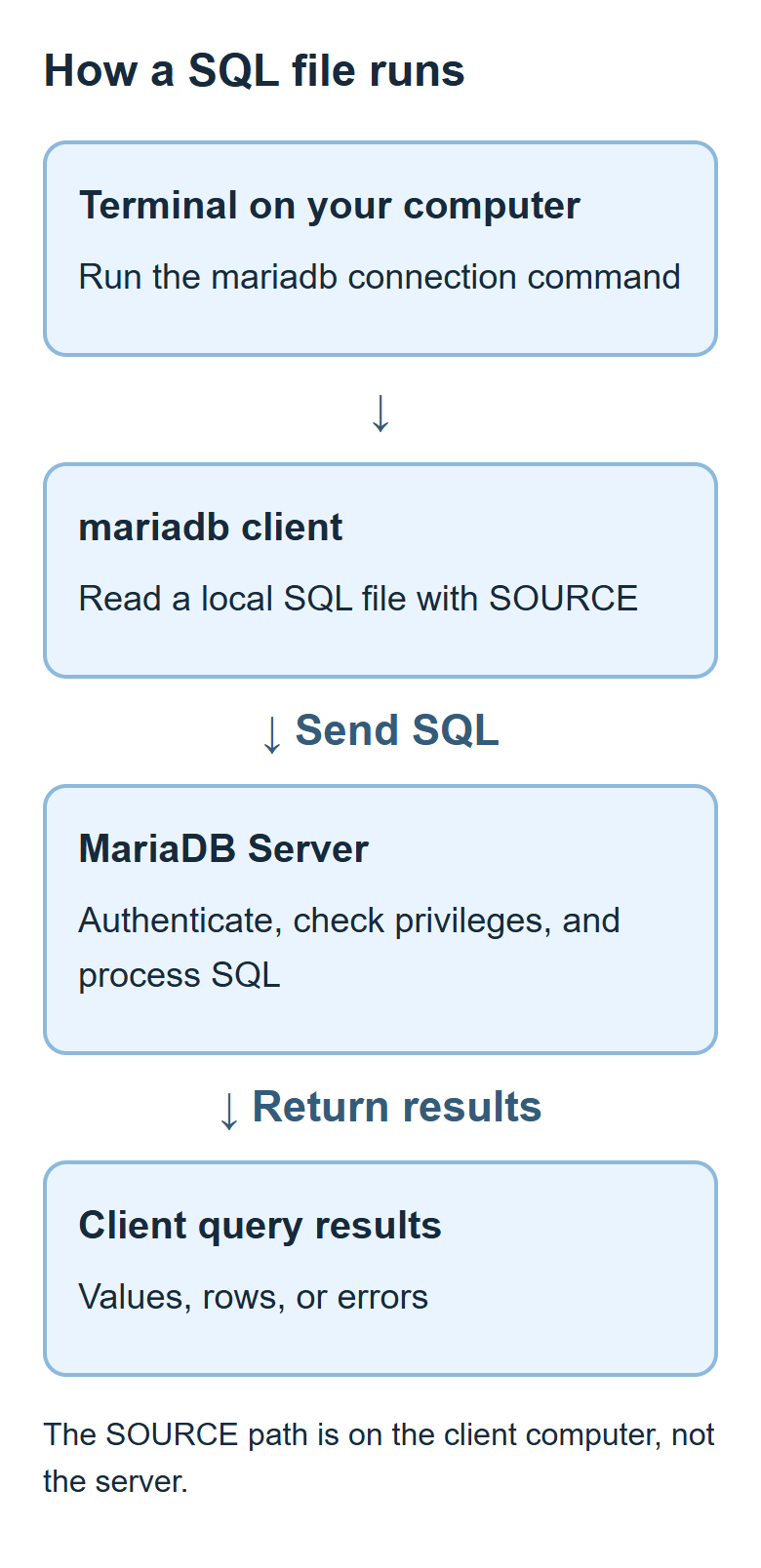
The shell runs the client program; the connected client passes SQL to the server. The SOURCE command is interpreted by that client, which reads the local file and sends its statements. Confusing these layers is a common reason a valid command is entered in the wrong place.
Connect from the terminal and verify the connection
Run this in the terminal, outside any existing MariaDB connection:
mariadb --protocol=tcp --host=127.0.0.1 --port=3306 --user=course_user --password --default-character-set=utf8mb4 --abort-source-on-error
| Option | Purpose |
|---|---|
| --protocol=tcp | Use TCP explicitly rather than a local socket |
| --host and --port | Select the server endpoint |
| --user | Select the MariaDB user name |
| --password | Prompt for the password instead of including it in the command |
| --default-character-set=utf8mb4 | Set the client connection character set |
| --abort-source-on-error | Stop the remaining SOURCE input when an error occurs |
On Windows, if mariadb is not in your path, use the installation’s MariaDB Command Prompt or the full executable path described in the Windows guide. A prompt such as MariaDB [(none)]> means the connection has no default database selected. It does not itself indicate a failed login.
Inside the client, run:
SELECT VERSION() AS server_version;
SELECT USER() AS connection_user,
       CURRENT_USER() AS privilege_account;
SELECT 2 + 3 AS total, 'Hello, café' AS greeting;
The server returns its version, account information, a total of 5, and the greeting Hello, café. The accented character also gives you a simple encoding check. USER() describes the connection identity, while CURRENT_USER() identifies the account used for privilege checks. See the official command-line client reference for the option and command definitions.
Finish, cancel, or display a statement
SQL can span multiple lines. The client waits until the statement is complete, normally marked by a semicolon:
SELECT
  10 + 20 AS total;
The result is 30. If you are still typing an incomplete statement and want to discard it, enter the client command below:
\c
To display a result vertically, use the client terminator \G instead of a semicolon:
SELECT VERSION() AS server_version\G
\c and \G are client conventions, not general SQL syntax that every database tool accepts. Run EXIT; to end a connection. Disconnecting does not stop the MariaDB server or remove its data.
Save a complete UTF-8 SQL file
Create a plain-text file named lesson04-check.sql containing the entire example:
SELECT VERSION() AS server_version;
SELECT USER() AS connection_user,
       CURRENT_USER() AS privilege_account;
SELECT 2 + 3 AS total, 'Hello, café' AS greeting;
Use your editor’s UTF-8 encoding and check the actual extension. For example, Windows may hide extensions and leave a file named lesson04-check.sql.txt. Choose a directory you control, such as C:\mariadb-course\ on Windows or /home/yourname/mariadb-course/ on Ubuntu. Replace yourname with the real directory component.
The file stores instructions, not a database backup. Saving it does not run any statement. Its path is a filesystem location on the client computer, whereas 127.0.0.1:3306 identifies a server endpoint.
Run the file with SOURCE and check its results
After connecting, use the Windows path with forward slashes:
SOURCE C:/mariadb-course/lesson04-check.sql;
Or use the actual Ubuntu path:
SOURCE /home/yourname/mariadb-course/lesson04-check.sql;
These are alternatives, not commands to run one after the other. The client should display the same three query results, including total 5 and the intact greeting. This particular file only reads values, so repeating it does not add or delete table rows. The product-table exercise provides a complete file that does create a table and add data.
If your client runs on one computer and the server on another, SOURCE still reads a file on the client computer. With --abort-source-on-error, an error stops the remaining source input. It does not reverse statements that already succeeded, and it does not make table-creation statements rollbackable.
Resolve file, encoding, and SQL errors
- File not found: check the full path, spelling, permissions, and whether the extension is really .sql.
- Unreadable text: check the file’s UTF-8 encoding, the connection character set, and the terminal’s display encoding.
- Access denied: review the account and permissions; this is different from a missing file.
- An error partway through a file: inspect what already succeeded before rerunning a file that changes data.
On Windows, if the terminal’s display encoding is the problem, exit the MariaDB client, run the following in the terminal, and reconnect with the UTF-8 connection option:
chcp 65001
Inside the client, inspect the connection’s character-set variables when needed:
SHOW VARIABLES LIKE 'character_set_%';
Changing a connection setting does not automatically repair text that was previously stored incorrectly. Check where the problem originates before changing stored data. Keep shell commands, client commands, and SQL in their proper execution contexts.

MariaDB Tutorial / Install MariaDB on Windows and Start the Server
Set up a local MariaDB server on Windows, verify its service and TCP connection, and create a database-scoped learning account. Follow practical checks for installation, port, path, and authentication problems.

MariaDB Tutorial / Connect with the Command-Line Client and Run SQL Files
Connect to MariaDB with explicit TCP and UTF-8 settings, check account and query results, and execute a complete SQL file with SOURCE. Learn how to diagnose path, encoding, and partial-execution errors.

MariaDB Tutorial / Create a Database with CREATE DATABASE, USE, and utf8mb4
Create a practice database with explicit utf8mb4 settings and verify its definition. Understand connection-local database selection, collation comparisons, and why IF NOT EXISTS preserves existing defaults.

MariaDB Tutorial / Install MariaDB on Ubuntu and Start the Server
Install MariaDB on Ubuntu with APT, distinguish service activity from automatic startup, and understand socket authentication. Create a restricted TCP learning account and diagnose connection or service problems.

MariaDB Tutorial / Create a Product Table, Insert Data, and Query It
Build a complete product table, insert three records, and verify its definition and query results. Practice price and stock filters, understand rerun behavior, and reset only confirmed disposable tutorial data.

MariaDB Tutorial / What MariaDB Is: Databases, SQL, and Its Relationship to MySQL
Understand the roles of the MariaDB server and client, the structure of relational data, and the purpose of SQL. Learn how MariaDB relates to MySQL and prepare for a small product-database exercise.